Using the Schedules Screen
Overview
The Schedules Screen is where created trips are assigned to specific runs to create an optimized schedule for the day.
There are 4 tabs within the schedules screen each with their own function
- View all scheduled and un-scheduled trips
- Assign trips to different runs
- View driver's runs
- Create templates for a desired schedule
- Edit trips
- View all created trips by date
- Schedule, unschedule, delete and cancel trips
- Print the schedule
- Email the schedule to drivers
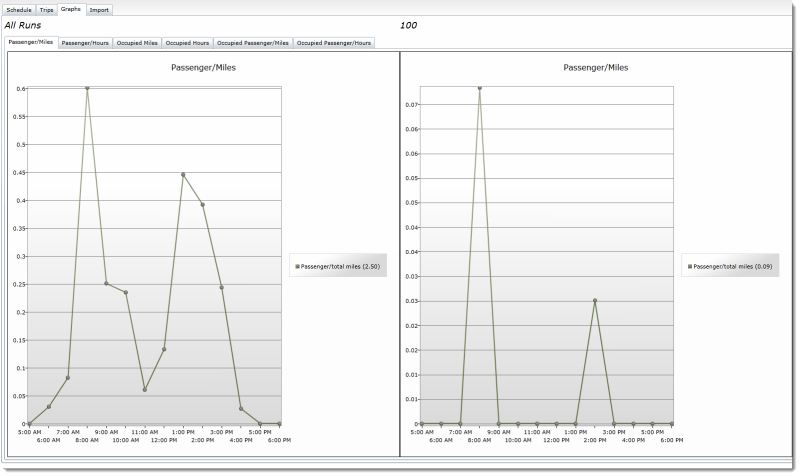
- View the operational information of the software
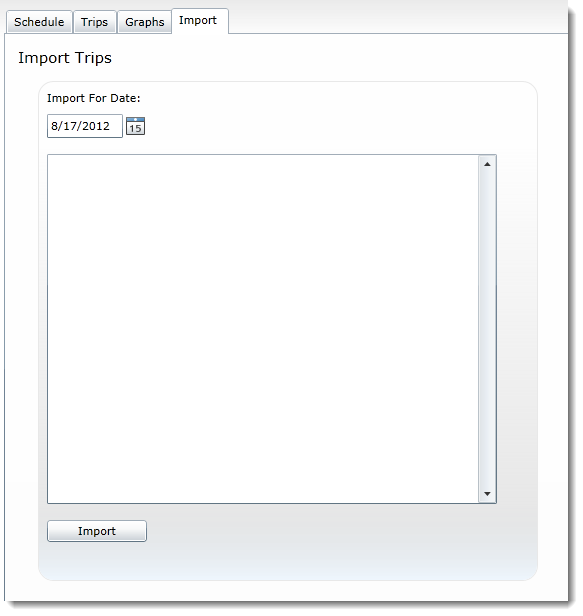
- Import trip information from iMed Express into MediRoutes
Schedules
The Schedules Tab is where the scheduled runs can be viewed and fine-tuned to create an optomized schedule
There are 3 major facets to the Schedules Tab:
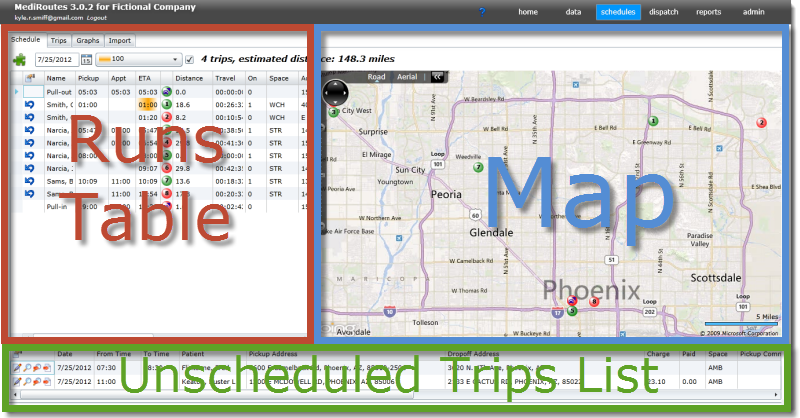
- Runs Table
- Unscheduled Trips
- The Edit Trip Icon
 allows you to change trip information.
 -
The
 icon will show a list of possible runs to place the trip on within the parameters of the Single Insert Violation defined within the Violation Sets tab (See Data screen documentation for more information).
You may click the different options to view where they would fit into the current schedule.
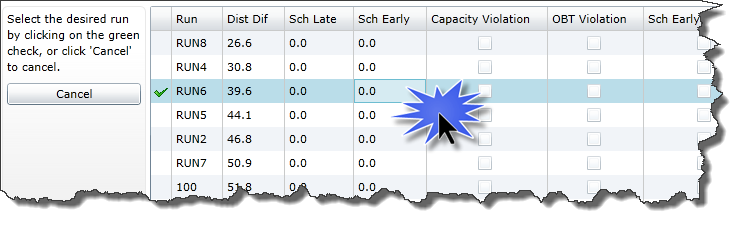
Check-boxes to the right of the run indicate which violations the trip would be making if placed on that run.
Once the best fit has been found click the green check mark to the left of the run you wish to place the trip in.
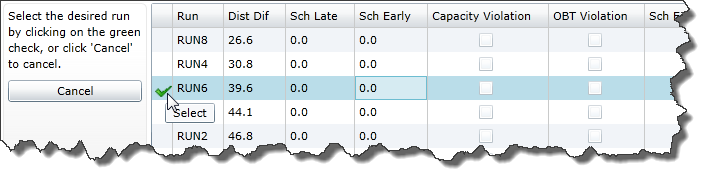
The trip will then be placed within the selected run and removed from the unscheduled trips list.
- The
 icon will find all possible insertion options within the parameters of the Force Violation Set defined within the Scheduling Tab of the Data Screen. In the same way as the Single Insert icon, click the green check mark to the left of the run in which you wish the trip to be inserted
 - The
 icon will force the trip into the run currently being viewed.
 - Map
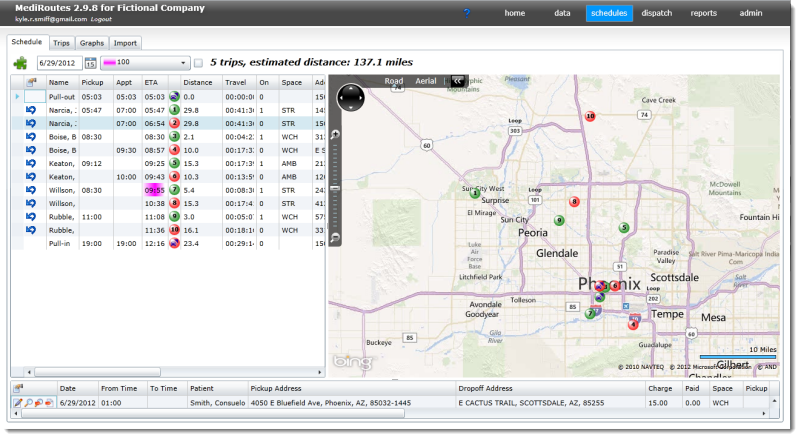
After trips have been scheduled within the Trips tab they may be viewed by runs within the Runs Table. To select which run you wish to view, locate it within the runs drop down tab
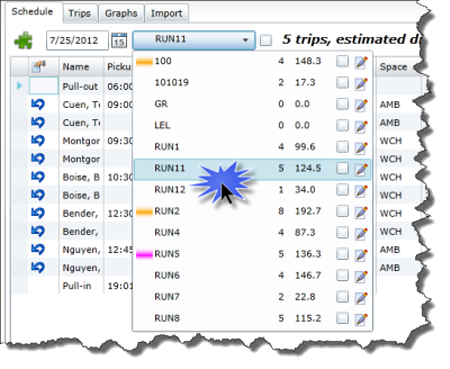
The trips will be listed in the order of their occurance. A circlular icon to the right of the trip will indicate what number trip it is for the run  .
.
If the icon is green then the trip is a pickup . If the icon is red then the trip is a dropoff 
Trips may be unscheduled at any time by clicking the  icon to the left of the trip. Once the trip has been unscheduled it will be moved to the unscheduled trips section of the Schedule Tab
If all the runs work well together and you wish to recreate the schedule on a later day using the current day as a template then click the  icon at the top right of the Runs Table.
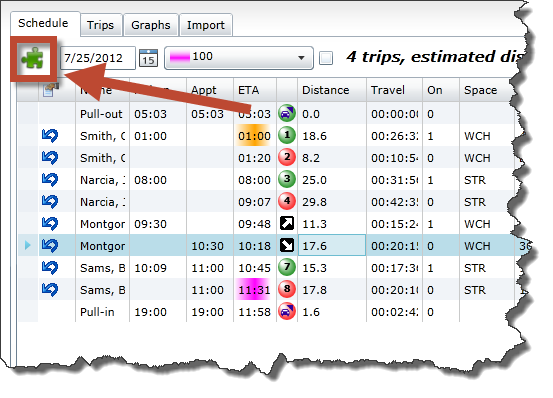
After clicking the Template icon the following window will appear
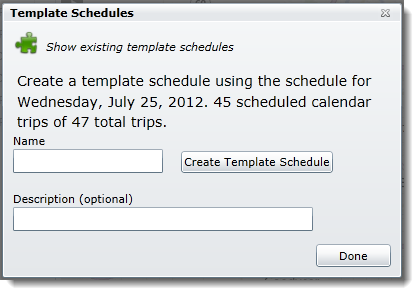
Simply enter the name you wish to save the template as and then click "Create Template Schedule"
The Unscheduled Trips List is where all unscheduled trips may be viewed and assigned to the best fitting runs.

There are four options when viewing unscheduled trips each with their own assigned icon:
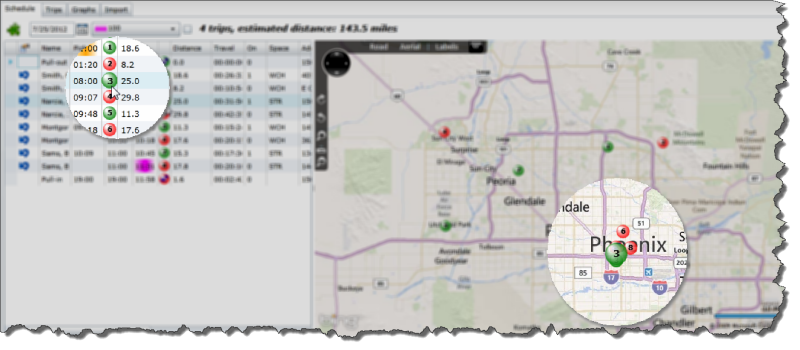
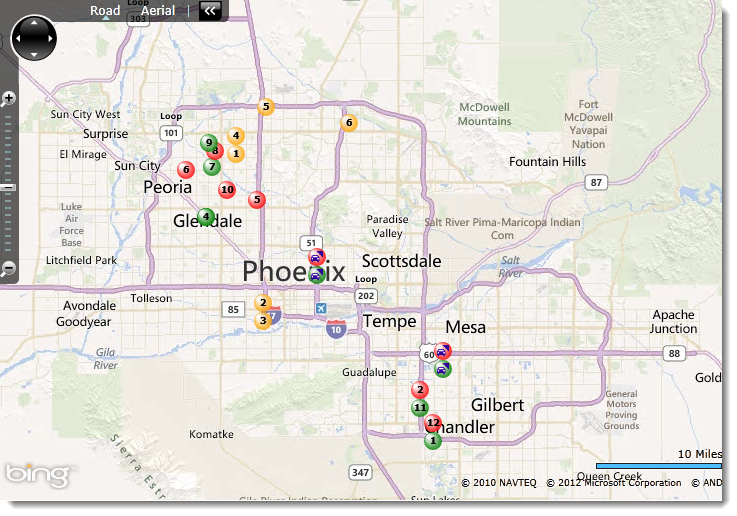
You may use the map to view runs individually.

When a run is selected the map will be populated with the same circular icons next to the trips within the Runs Table.
When hovering over a circular icon within the Runs Table the matching map icon will enlarge to easily view it's location
Dropoff and pickup locations may be viewed for multiple runs at once.
Simple click the check-box to the right of the run name within the runs drop down tab
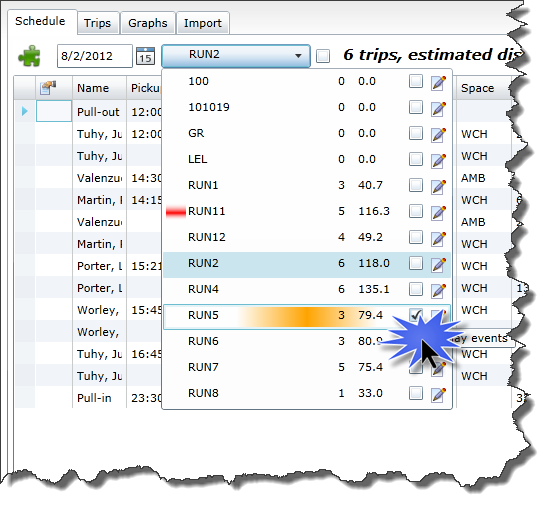
The map will then be populated with locations for both the run currently being viewed as well as the selected run
Trips
The Trips tab is where all created trips may be viewed by date and then scheduled using specific templates or violation sets.
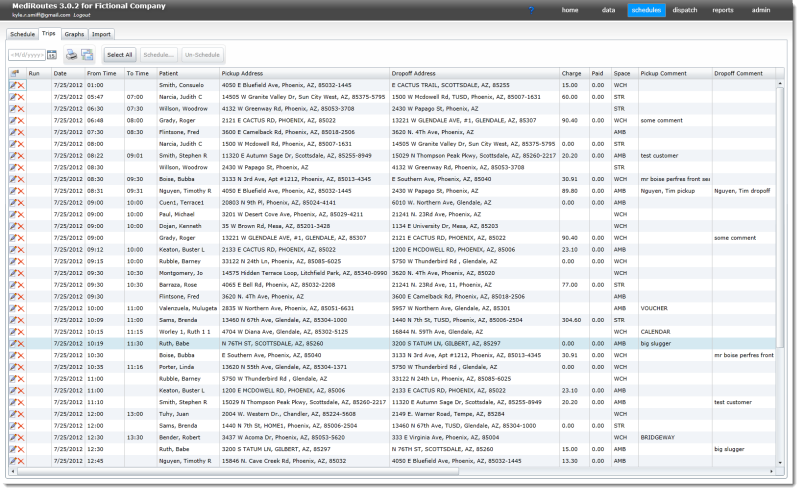
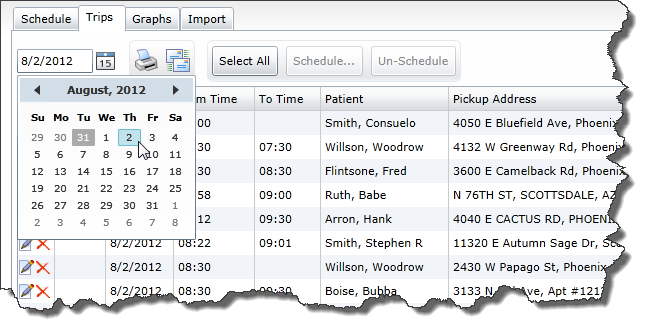
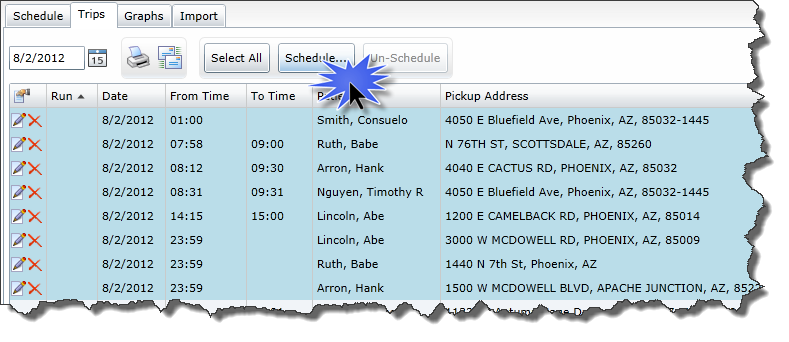
To schedule the trips first select the date for which you would like to schedule the trips
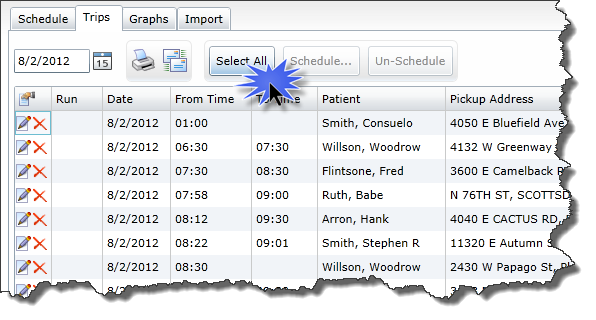
Next select the trips you wish to schedule. In the case that all trips are to be scheduled click "Select All"
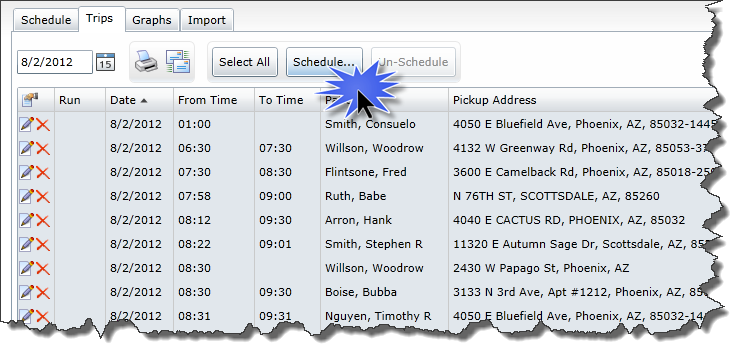
Next click the "Schedule..." button
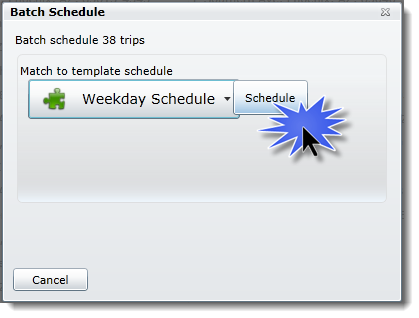
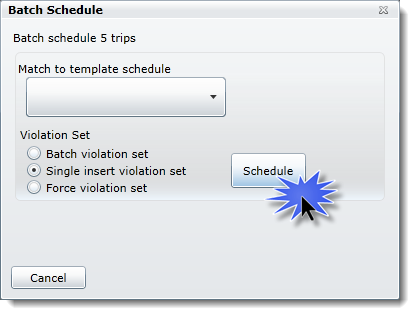
A window will appear for you to select the method by which the schedule will be created
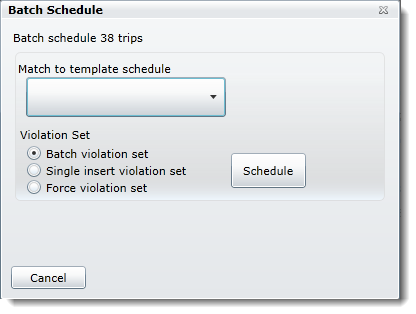
Within this window you may choose a template that you have created in the past for scheduling trips or you may choose a violation set that you wish the algorithm to follow in assigning the trips to runs
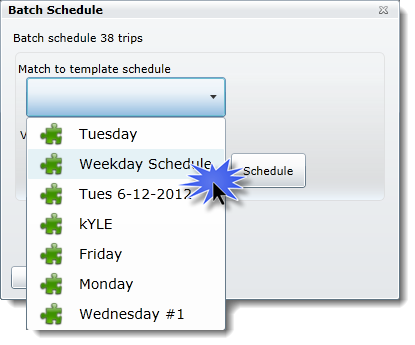
Once you have chosen the desired method of scheduling click the button labeled "Schedule"
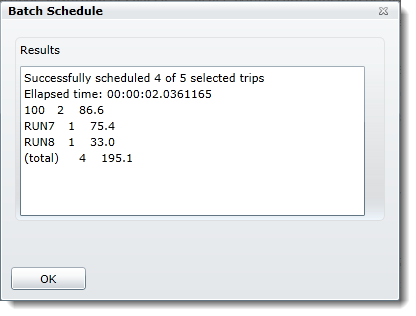
A window will then appear displaying the number of trips successfully scheduled
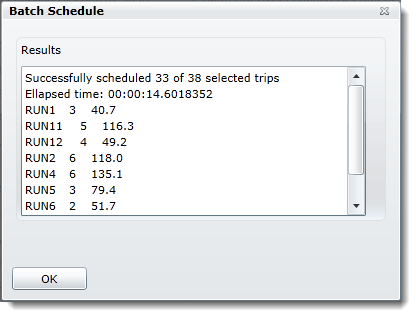
The table below the elapsed time will display the run name, number of trips for that run, and the distance traveled for that run
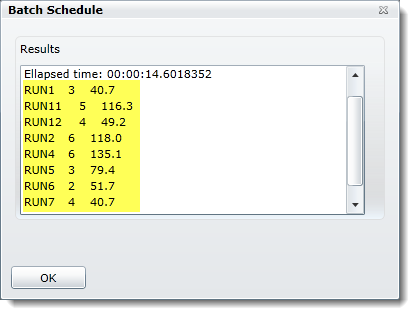
To schedule the trips that were not successfully scheduled using the template scheduling method or a violation set first select them from within the Trips tab
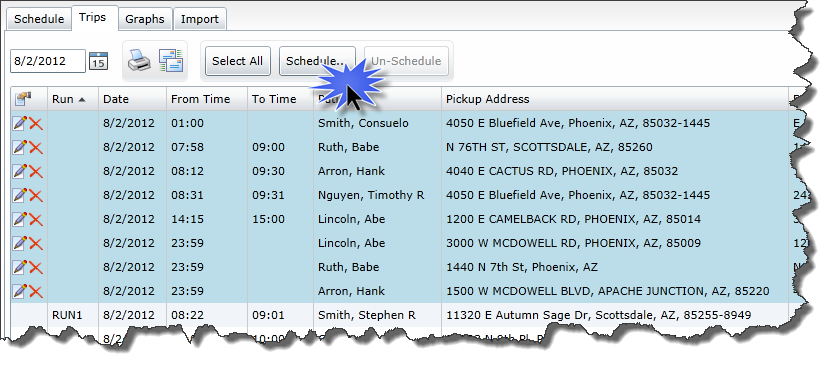
They may be identified by the lack of a run name as well as the ability to cancel and edit the trips
Once the unshceduled trips have been selected click "Schedule"
By choosing a different scheduling method such as a more lenient violation set the scheduling algorithm may be able to find solutions that were not possible with the prior restrictions
Typically a change in violation set yields good results
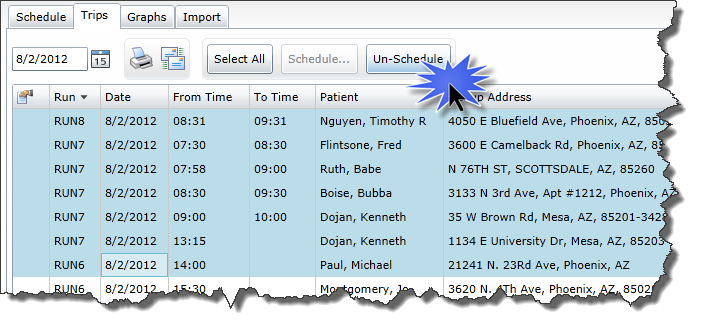
Trips may be unscheduled at any time by simply selecting the trips you wish to unschedule and then clicking "Un-Schedule"
The trips list may be exported in two ways:
By clicking the
 icon you may either print the trips list or export it as an Excell file.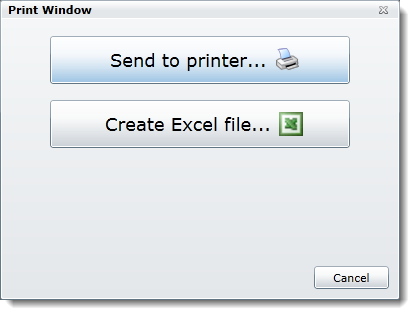
Clicking the
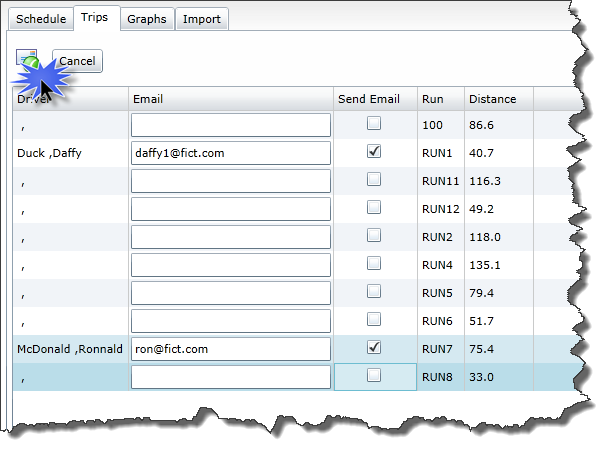
 icon will navigate you to a window in which you may select the drivers you wish to send the trips list to.
Simply check the boxes within the "Send Email" column to the right of the drivers you wish to send the trips list to and click the
 icon at the top left corner of the screen